Help
×
Advance booking is available only until 12:06 PM every day.
- First click on Deity and then select the required offerings.
- Then enter the name, star, quantity, and required date of the person for whom the offerings are to be performed.
-
Then click the "Add-to-Cart"
 button at the top right. The selected offerings will then be added to the list.
To add more offerings, click and add additional offerings if required.
-
Click the
 button to make the payment.
-
After clicking the "Proceed to Payment" button, if the devotee is already registered,
enter the email/mobile number and password
to log in and successfully complete the payment.
Otherwise
Continue as Guest to provide the required information and successfully complete the payment.
"Click here to Register" to provide the required information and complete permanent registration. - After successful payment, a confirmation online receipt will be issued by the temple.
- If the amount has been debited from your bank account but you do not receive the confirmation receipt, you should immediately contact the temple office.
- If you do not receive the receipts for the offerings you booked, select 'My Account' from the "HOME" page to obtain duplicate receipts. Enter the mobile number provided while booking the offering to retrieve the offering list.
- You can select the receipts that were not received, download them, and take a printout.
-
Click
 from the menu bar. The page containing the offering details will then be displayed.
-
When you click on the
Deity
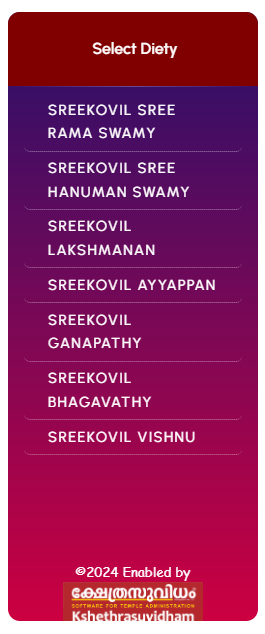 ,
the corresponding
offerings
,
the corresponding
offerings
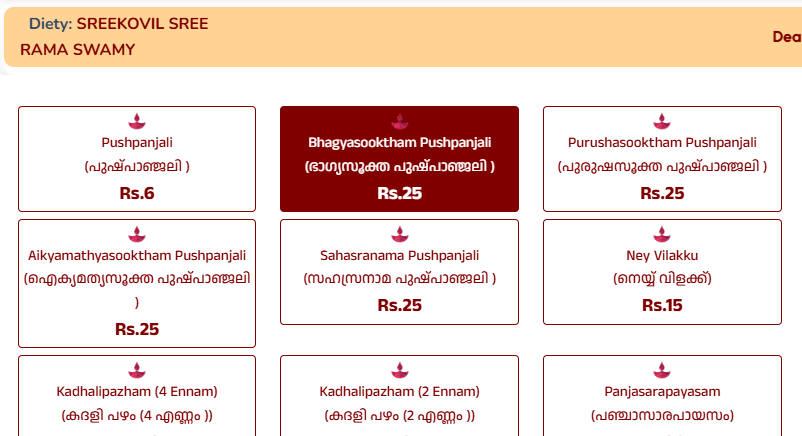 will be displayed.
Click on the required offering.
will be displayed.
Click on the required offering.
-
On the
screen
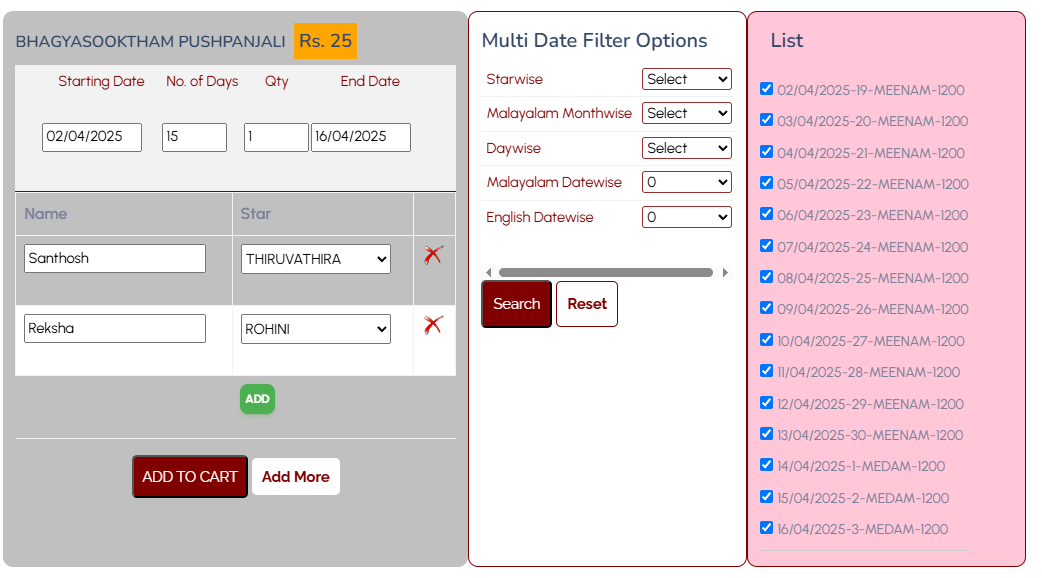 that appears next, you can enter the starting date of the offering,
the number of days required, quantity, and other details.
You can also enter the devotee's name and star.
If required, you can provide the names and stars of more than one devotee
and book the offering.
that appears next, you can enter the starting date of the offering,
the number of days required, quantity, and other details.
You can also enter the devotee's name and star.
If required, you can provide the names and stars of more than one devotee
and book the offering.
-
After entering the required information, click the
 button.
-
On the next screen, click the
button to make the payment.
-
After clicking the "Proceed to Payment" button, if the devotee is already registered,
enter the
email/mobile number and password
to log in and successfully complete the payment.
Otherwise
Continue as Guest to provide the required information and successfully complete the payment.
"Click here to Register" to provide the required information and complete permanent registration. - After successful payment, a confirmation online receipt will be issued by the temple.
- If the amount has been debited from your bank account but you do not receive the confirmation receipt, you should immediately contact the temple office.
- If you do not receive the receipts for the offerings you booked, select 'My Account' from the "HOME" page to obtain duplicate receipts. Enter the mobile number provided while booking the offering to retrieve the offering list.
- You can select the receipts that were not received, download them, and take a printout.